Geometry Dash on PC is the most precise way to play. The keyboard gives you exact timing, the big screen shows you more of the level, and Steam keeps the game updated for you. This guide explains how to install Geometry Dash on Steam for Windows and Mac, how the keyboard controls work, how to set your own keys, and how to practise the hard levels. If you play on a computer, this is the guide to start with. This Geometry Dash PC guide covers Steam, Windows and Mac.
What You Need (Steam, Windows/Mac)
You need a Windows or Mac computer, a Steam account, and the Steam app installed. The full version of Geometry Dash on Steam is paid. There is no free full version on PC, but the game is the same one you know from phones. You need enough free space on your computer and a keyboard that works well. A mouse is useful in the menus, but you play the levels with the keyboard. You can find the Steam link on the Download page.
How to Install Geometry Dash on Steam
First, open Steam on your computer and sign in. Next, search for Geometry Dash in the Steam store and check that the developer is RobTop Games. Then buy the game and wait for it to download. After that, click Play in your Steam library and the game will open. Do not download the game from random websites. Steam is the safe and official way to get Geometry Dash on PC, and it also handles updates for you.
Keyboard Controls Explained
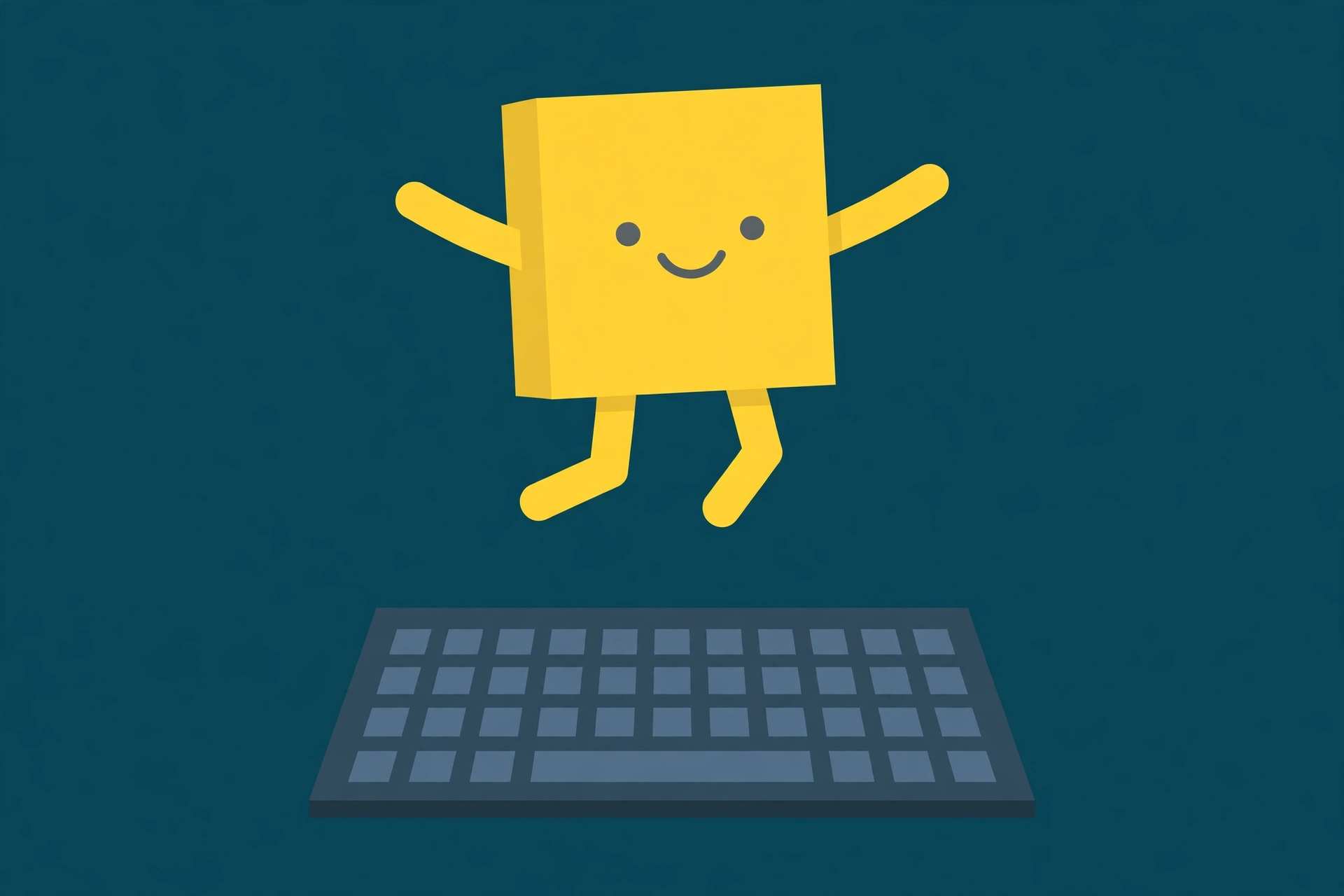
On PC, you play with the keyboard. Press the space bar or the up arrow to jump, and hold it to jump again and again. The Cube jumps, the Ship flies while you hold, and the Ball flips gravity with a press. The timing is the same as on a phone, but the keyboard feels more exact. Keep your hand relaxed on the space bar, and do not press too hard. A calm hand gives you steadier jumps, and steadier jumps mean fewer deaths at the same spike.
Custom Keybinds (2.209)
Update 2.209 added custom keybinds, and they are a real help for PC players. A keybind is simply the key you press to play. Before 2.209, you used the keys the game gave you. Now you can choose your own keys in the settings. For example, if the space bar feels awkward, you can pick another key that fits your hand better. Try two or three keys, play a short level with each one, and keep the key that feels most natural. Small comfort changes like this add up over long sessions.
Mouse vs Keyboard — What Works Best
For playing levels, the keyboard is best. It is fast, it is exact, and it never misses a press. The mouse is best for the menus, the level editor, and browsing community levels. Some players try to play with the mouse, but the keyboard gives better timing on hard jumps. So use the mouse to set up, and the keyboard to play. After a few days, the space bar will feel like part of your hand.
Practice Mode on PC
Practice Mode on PC works the same as on phones, and the keyboard makes it even better. Place green checkpoints with a key press, learn one hard section at a time, and then try a normal run. Because the keyboard is exact, you can repeat the same jump many times and learn it properly. If a section kills you again and again, place a checkpoint just before it and practise only that part. Then move the checkpoint forward when the part feels easy. You can read about every mode in our game modes guide before you practise a new one. For Geometry Dash PC players, Practice Mode is the fastest way to learn a hard level.
FAQs
Geometry Dash PC: your questions answered
Q: Can I play Geometry Dash on PC for free? A: The full version on Steam is paid. There is no free full version on PC, but the free Lite, Meltdown, World, and SubZero versions are made for phones.
Q: Does Geometry Dash work on Mac? A: Yes, Geometry Dash on Steam works on Mac as well as Windows. Install it through Steam the same way.
Q: What key do I press to jump in Geometry Dash on PC? A: Press the space bar or the up arrow to jump. Hold it to jump again and again. Update 2.209 also lets you choose your own keys.
Q: Is Geometry Dash better on PC or phone? A: PC gives more exact timing with the keyboard and a bigger screen. Phones are easier to carry. Both are good, so pick the one you enjoy more.
Q: How do I update Geometry Dash on Steam? A: Steam updates the game for you. Open Steam, check your library, and let the update finish before you play.
Conclusion
Geometry Dash on PC is precise, smooth, and easy to set up through Steam. Install it from the official store, learn the keyboard controls, set your own keys with the 2.209 custom keybinds, and use Practice Mode on every hard level. Start with the easy levels and work your way up. You can get the game from the Download page, and our game modes guide will help you learn each mode. This Geometry Dash PC guide is your starting point, so go and play.